Designing a website on WordPress starts with a clear plan, then moves through choosing a hosting setup, picking a theme, and building your pages. You can design a website on WordPress by planning your layout first, picking the right hosting and theme, then customizing pages before you launch. WordPress is a popular content management system, and it works well for beginners because you don’t need to write code to build a site.
This guide walks you through each stage of the design process. You will learn how to plan your site structure, pick a WordPress setup that fits your needs, and choose a theme that matches your style. You will also learn how to build key pages, add features, and prepare your site for a public launch.
Pro Tip: Before you touch any settings, sketch your site structure on paper. Knowing your pages and menu layout ahead of time will save you hours of rework later.
Key Takeaways: How To Design A Website On WordPress
- A clear plan for your site layout makes the design process faster and easier.
- The right hosting, theme, and page setup form the base of a strong WordPress website.
- Speed, security, and SEO checks help your site perform well after launch.
Plan Your Site Structure and Design Direction
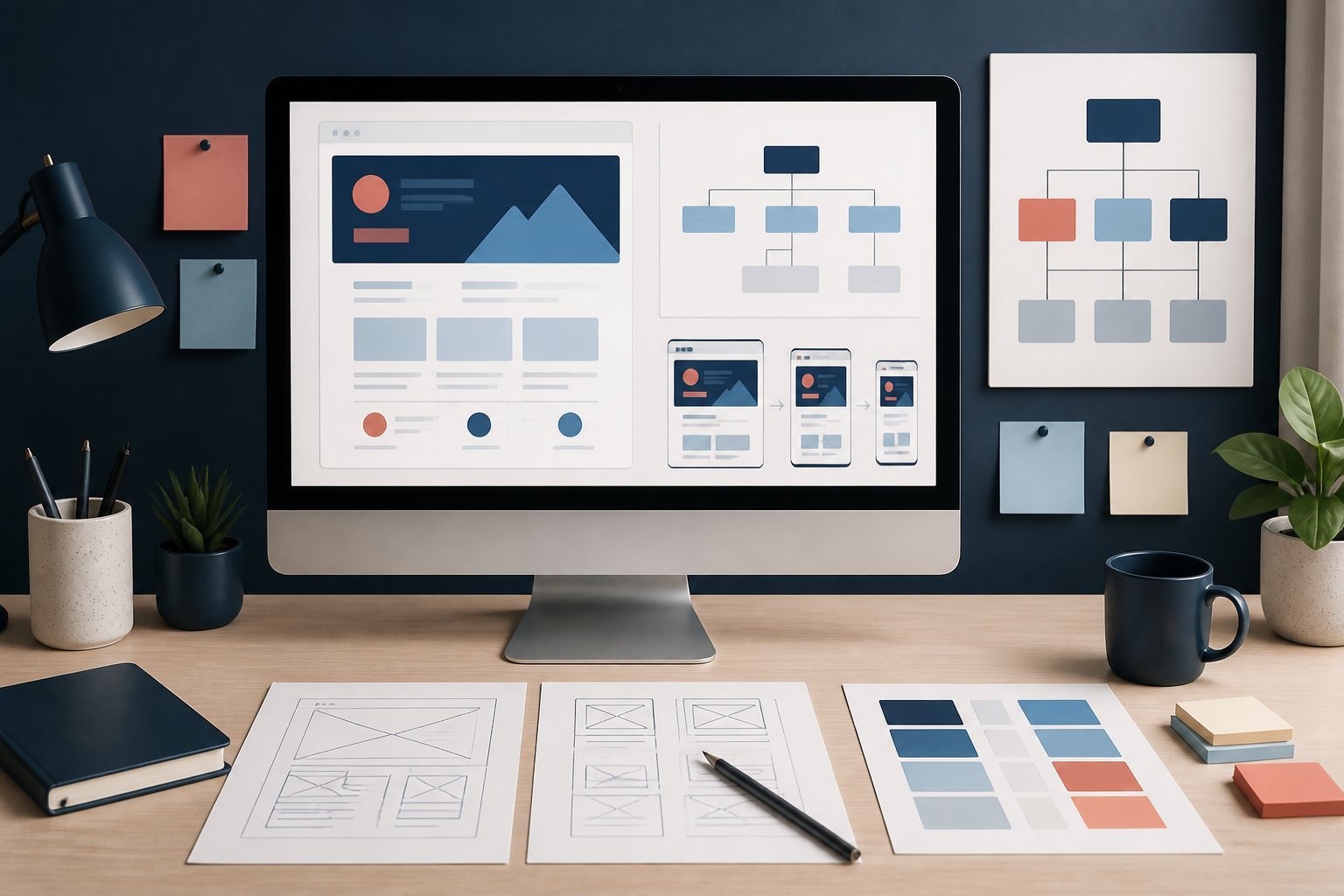
A good WordPress site starts before you touch a theme or plugin. You need clear goals, an organized layout, and a design plan that fits your brand to design a website on WordPress.
Define Goals, Audience, and Primary Actions
Start by writing down what you want your site to do. Do you want visitors to buy a product, book a service, or read your blog?
Next, think about who will visit your site. What do they need? What problems are they trying to solve? Knowing your audience helps you decide what content and features to include.
Then, list the main action you want visitors to take. This could be filling out a contact form, making a purchase, or signing up for a newsletter. Keep this action in mind as you plan every page.
Use the SMART method to set goals that are specific, measurable, achievable, relevant, and time-bound. This gives you a clear way to check if your website planning is working.
Create a Sitemap and Content Strategy
A sitemap lists every page on your site and shows how they connect. Start by listing pages you need, such as your homepage, about page, contact page, and any product pages.
Group similar pages together. For example, if you sell products, group them by category. This makes it easier for visitors to find what they want.
Your content strategy should match your sitemap. Decide what each page will say and who will write it. If you plan to use content marketing to bring in traffic, plan a blog section with categories and a content calendar.
Think about keywords, too. Research what terms people search for related to your topic. Use these keywords in your page titles, headings, and URLs to help with site architecture and SEO.
Pro Tip: Keep your sitemap simple. Most visitors should be able to reach any page within three clicks from your homepage.
Map Key Pages With a Wireframe
A wireframe is a basic sketch of your page layout. It shows where text, images, and buttons will go, without any color or design details to design a website on WordPress.
Start with your homepage. Decide what sections it needs, such as a hero image, key features, and calls to action. Do the same for your about page, contact page, and product pages.
Wireframes help you test your layout before building the real site. You can move sections around and see what works best for your visitors.
Once you’re happy with the wireframe, share it with others for feedback. Fix any issues with layout or flow before moving to the design stage to design a website on WordPress.
Establish Brand Colors, Typography, and Visual Style
Your brand’s colors and typography set the tone for your entire site. Choose two or three main colors that reflect your brand’s personality. Avoid using too many colors, as this can make your site look messy.
Pick fonts that are easy to read on both desktop and mobile screens. Most sites use one font for headings and another for body text. Make sure the fonts match the style you want, whether that’s modern, playful, or professional.
Create a simple style guide with your colors, fonts, and logo rules. This keeps your site looking consistent as you add new pages.
Pro Tip: Test your color and font choices on a sample page before applying them site-wide. This helps you catch problems with readability or contrast early.
Choose the Right WordPress Setup and Hosting
Before you start designing your site, you need to pick the right WordPress platform and hosting setup. This choice affects how much control you have, how much you pay, and how your site performs.
Compare WordPress.org and WordPress.com
WordPress.org and WordPress.com are not the same thing, even though they share a name. WordPress.org is the self-hosted version. You download the software for free, but you need to buy your own hosting and domain.
WordPress.com is a hosted service. It takes care of hosting for you, but you give up some control in exchange.
Here’s a quick breakdown:
| Feature | WordPress.org | WordPress.com |
|---|---|---|
| Cost | Free software, pay for hosting | Free and paid plans |
| Control | Full control over site | Limited on free/lower plans |
| Plugins/Themes | Unlimited access | Restricted on some plans |
| Hosting | You choose your host | Included |
Most people who want a business site choose self-hosted WordPress because it gives you more freedom to customize and grow.
Select a Domain Name and Hosting Plan
Your domain name is your site’s address on the internet, like yoursite.com. Pick a name that’s short, easy to spell, and matches your brand or business.
Once you have a domain, you need web hosting. This is the service that stores your website’s files and makes them available online.
Many hosting providers bundle a free domain with your first year of hosting. Popular options include Bluehost, SiteGround, Hostinger, HostGator, and GoDaddy.
Compare their pricing, renewal rates, and customer support before you commit. Some hosts offer lower introductory prices that jump up after the first term, so check the renewal cost too.
Pro Tip: Always check the renewal price, not just the introductory offer. Many hosts double or triple their rates after the first year, so budget for the real long-term cost.
Understand Shared, Managed, and VPS Hosting
Not all WordPress hosting works the same way. The type you pick affects speed, security, and price.
- Shared hosting puts your site on a server with many other websites. It’s the cheapest option and works fine for small sites or blogs just starting out.
- Managed WordPress hosting is built specifically for WordPress. The host handles updates, backups, and security so you don’t have to.
- VPS hosting (Virtual Private Server) gives you a dedicated slice of a server’s resources. It costs more than shared hosting but handles higher traffic better.
If you’re new to WordPress, shared or managed hosting is usually the easier starting point. As your site grows and needs more power, you can upgrade to VPS or dedicated hosting later.
Install WordPress and Configure SSL
Most hosting providers offer a one-click WordPress installation through cPanel, their control panel dashboard. Log into cPanel, find the WordPress installer icon, and follow the setup prompts. You’ll pick your domain, set an admin username, and create a password.
The whole process usually takes less than five minutes.
Next, set up an SSL certificate. This encrypts data between your site and your visitors, and it’s required for security and search rankings. Most hosts, including Bluehost and Hostinger, offer free SSL certificates through Let’s Encrypt.
After installation, check that your site loads with “https://” instead of “http://” in the address bar. If it doesn’t, go back into your hosting dashboard and activate the SSL certificate manually.
Pro Tip: If your SSL certificate doesn’t activate right away, clear your browser cache or wait up to 24 hours. Certificates sometimes need time to fully propagate across servers.
Select a Theme and Build Your Core Layout
Your theme sets the base for your site’s look and structure. You will also need to pick your editing tools and set up a header, footer, and menu that stay the same on every page.
Choose Between Block Themes and Classic Themes
WordPress themes come in two main types: block themes and classic themes. Block themes work with the Full Site Editor, which lets you edit your header, footer, and page layouts using blocks. Classic themes rely on the older Customizer tool and often need PHP code for bigger changes.
If you want more control without touching code, a block theme is often the better pick. Classic themes still work well, though, and many popular premium WordPress themes still use this format.
Think about your skill level and how much control you want. Block themes give you more flexibility right in the editor. Classic themes may feel more familiar if you have used WordPress for a long time.
Pro Tip: Before you commit to a theme, check its demo site on both desktop and mobile. This helps you spot layout issues early, before you build any pages.
Use the Block Editor and Block Patterns
The WordPress block editor is the main tool you’ll use to add content to your pages. It works by placing blocks, such as text, images, or buttons, one after another to build a page.
Block patterns are groups of blocks already arranged for you. Instead of building a layout piece by piece, you can insert a pattern and then edit the text and images inside it.
Many WordPress themes include their own set of block patterns. You can also find libraries of patterns built for common page types like About pages or contact sections.
Using patterns saves time and helps keep your spacing and design consistent to design a website on WordPress. It also lowers the chance of layout mistakes since the structure is already tested.
Decide When to Use a Page Builder
These builders work well if you want detailed control over spacing, columns, and animations to design a website on WordPress. They also often include their own templates, which can speed up design work.
That said, page builders can add extra code to your site, which may slow down load times. They also tend to have a learning curve.
| Tool | Best For |
|---|---|
| Block Editor | Simple pages, blog posts |
| Elementor | Detailed custom layouts |
| Divi | Full design control with theme builder |
| SeedProd | Landing pages, coming soon pages |
Choose a page builder only if the block editor and patterns don’t meet your design needs.
Create a Consistent Header, Footer, and Navigation Menu
Your header, footer, and navigation menu should look the same across your entire site to design a website on WordPress. This helps visitors find their way around and builds trust in your brand.
If you use a block theme, you can edit these as template parts inside the Full Site Editor. Changes you make will apply site-wide, so you only need to set them up once.
Your navigation menu should list your main pages, such as Home, About, Services, and Contact. Keep the menu short and clear so visitors don’t feel confused.
Pro Tip: If you need small design tweaks that blocks can’t handle, most themes let you add custom CSS through the Customizer or Site Editor without changing theme files directly.
Design Essential Pages and Publish Content
Your website needs a few key pages before it’s ready for visitors. Each page has a different job, and getting the basics right on your homepage, about page, contact page, and blog posts will make your site work better for everyone who visits.
Build a High-Converting Homepage
Your homepage is often the first thing people see. It needs to tell visitors what your site is about within a few seconds.
Start with a clear headline that explains what you offer. Add a short description below it that gives more context.
Include a call-to-action button that tells visitors what to do next. This could be “Contact Us,” “Shop Now,” or “Learn More.”
Keep the layout simple. Use images that support your message, not ones that just fill space.
Add sections that answer common questions, such as what you do, who you serve, and why someone should choose you. You can use the WordPress.com website builder to add these sections without writing any code.
Pro Tip: Test your homepage on a phone before you publish it. Most visitors will see your site on a mobile screen first.
Create Clear About and Contact Pages
Your about page should explain who you are and what your site or business does. Keep it honest and easy to read.
Include a short history, your mission, and any details that help build trust. A photo of you or your team can make the page feel more personal.
Your contact page needs a way for people to reach you. The most common option is a contact form.
Most WordPress themes let you add a contact form using a built-in block. You can also use free plugins that offer more form fields, like phone number or subject line.
Make sure your contact form sends messages to an email you check often. Test the form after you publish it to confirm it works.
Add Blog Posts With Readable Layouts
If you plan to publish a WordPress blog, structure matters as much as content. Break up your text with headers, short paragraphs, and images.
Use headers to separate ideas. This helps readers scan the post and find what they need quickly.
Keep paragraphs short, ideally two to four sentences. Long blocks of text are harder to read on screens.
Add bullet points or numbered lists when you’re sharing steps or key facts. This breaks up dense information and makes it easier to skim.
Choose a font size that’s easy to read without zooming in. Most WordPress themes set this automatically, but you can adjust it in your site’s typography settings if needed.
Pro Tip: End each blog post with a related question or link to another post. This keeps visitors on your site longer.
Set Site Title, Tagline, Favicon, and Permalinks
Your site title and tagline appear in search results and browser tabs. Go to Settings → General in your WordPress dashboard to set both.
Keep your site title short and recognizable. Your tagline should explain what your site is about in a few words.
A favicon is the small icon that shows up in browser tabs next to your site title. Upload one under Appearance → Customize → Site Identity. Use a simple image, since favicons appear at a tiny size.
Permalinks control the structure of your page URLs. Go to Settings → Permalinks and choose the “Post name” option for clean URLs that include your page title instead of random numbers or symbols.
Clean URLs are easier to read and share. They also help search engines understand what your page is about.
Add Features Without Overloading Your Site
Every plugin you add uses server resources and can slow down your site if you’re not careful. The key is picking tools that serve a clear purpose and skipping anything you don’t actually need.
Choose Essential WordPress Plugins
Your WordPress dashboard makes it easy to install plugins, but that doesn’t mean you should install every one you find. Stick to the best WordPress plugins that solve a specific problem on your site to design a website on WordPress.
Before adding a new plugin, ask yourself if it does something your theme or an existing tool can’t already handle. Too many plugins can cause conflicts and slow load times.
Here’s what to check before installing:
- Update frequency – plugins updated within the last few months are safer
- Review ratings – look for 4+ stars with a solid number of reviews
- Active installs – higher numbers suggest better reliability
- Support responses – check if developers answer user questions
Delete plugins you’re not using instead of just deactivating them. Unused plugins still take up space and can create security risks.
A page builder, also called a visual builder, gives you drag and drop tools to design pages beyond what the standard editor offers. Tools like Elementor, Divi from Elegant Themes, and SeedProd are common choices.
Contact forms are one of the most useful additions to any site. WPForms lets you build contact forms, surveys, and payment forms using a drag-and-drop editor, no coding needed.
Once your forms are live, you need to know if visitors are actually using them. MonsterInsights connects your site to Google Analytics and shows you traffic data right inside your WordPress dashboard.
Email delivery is another piece people forget. Many WordPress sites fail to send form notifications or password reset emails because of server issues. WP Mail SMTP fixes this by routing your emails through a proper mail service, so they actually reach the inbox.
Pro Tip: Test your contact form right after setup by submitting it yourself. This confirms your emails are actually being delivered, not just sitting in a queue.
Build an Online Store With WooCommerce
If you want to sell products or services, WooCommerce is the standard choice for WordPress sites. It’s a free plugin that turns your site into a fully working store.
WooCommerce handles product listings, shopping carts, checkout, and payment processing. You can sell physical goods, digital downloads, or even bookable services.
Setup involves a short wizard that walks you through store details, shipping options, and payment methods like Stripe or PayPal. Keep in mind that a store adds more moving parts to your site, so you’ll want reliable hosting and regular backups once it’s running.
Connect Newsletters and Social Media
Growing an email list helps you reach visitors even after they leave your site. Adding a newsletter signup form through a tool like WPForms or a dedicated email service lets you collect subscribers directly from your pages.
Social media integration is just as useful to design a website on WordPress. Smash Balloon lets you display live Instagram, Facebook, or Twitter feeds directly on your WordPress pages without manual updates.
This keeps your content fresh and shows visitors you’re active elsewhere online. Just avoid piling on too many feeds at once, since each one pulls data and can affect page speed if you’re not selective about your WordPress settings.
Optimize for SEO, Speed, Security, and Launch
Before you launch your site, you need to check four key areas: search visibility, load speed, protection from threats, and how the site performs across devices. Getting these right now saves you time and stress later.
Set Up On-Page SEO and XML Sitemaps
Add Forms, Analytics, and Email Delivery
Search engine optimization starts with the basics. Install an SEO plugin like Yoast SEO, Rank Math, or All in One SEO. These tools help you write titles, meta descriptions, and headers that search engines can read clearly.
Each plugin also creates an XML sitemap for you. This file lists every page on your site so search engines can find and index them faster.
You should also focus on:
- Adding one clear H1 tag per page
- Using descriptive URLs, like /shoes/running instead of /page-12
- Writing unique meta descriptions for each page
- Linking between related pages on your site
Once your sitemap is ready, submit it to Google Search Console. This step tells Google exactly where to look on your site.
Improve Performance With Caching, CDN, and Image Optimization
Page speed affects both rankings and user experience. Slow sites lose visitors fast, so this step matters a lot.
Start with a caching plugin. WP Rocket is a popular paid option, while LiteSpeed Cache works well if your host uses a LiteSpeed server. Both store a saved version of your pages so they load faster for return visitors.
Next, add a CDN, or content delivery network. A CDN stores copies of your site on servers around the world. This means visitors load your site from a server near them, not one far away.
Image optimization also plays a big role in speed. Large image files slow down your pages more than almost anything else. Compress images before uploading them, and use modern formats like WebP when your theme supports them.
Pro tip: Run your homepage through a speed test tool like PageSpeed Insights before and after making these changes. This shows you exactly how much faster your site becomes.
Protect the Site With Backups and Access Controls
WordPress security should never be an afterthought. Hackers often target sites that skip basic protection steps.
Start with a strong password and two-factor authentication for every admin account. This adds a second login step, so a stolen password alone won’t let someone into your site.
Next, install a security plugin. Sucuri Security offers a web application firewall, or WAF, which blocks harmful traffic before it reaches your site. This adds a layer of defense on top of your regular WordPress core updates.
Backups are just as important as prevention. UpdraftPlus lets you schedule automatic backups of your files and MySQL database. Store these backups somewhere separate from your hosting account, like cloud storage, so you can restore your site even if your host has a problem.
Keep WordPress core, your theme, and all plugins updated at all times. Outdated software is one of the most common ways sites get hacked.
Test Across Devices and Launch With Confidence
Before you launch, check how your site looks and works on different screens. Open your site on a phone, tablet, and desktop computer. Look for text that’s too small, buttons that overlap, or images that don’t resize properly.
Test your site in more than one browser, too. Chrome, Safari, and Firefox can sometimes display pages differently.
Click through every page and form on your site. Make sure contact forms send messages, links go to the right pages, and buttons work as expected.
Once everything checks out, you’re ready to launch. Keep monitoring your site closely for the first few days to catch any issues that come up after going live.
Frequently Asked Questions
Building a WordPress website raises common questions about cost, tools, and skill requirements. Here are direct answers to help you plan your project.
Can I create a website with WordPress for free?
Yes, you can build a website with WordPress at no cost using WordPress.org software, which is free to download and use.
You will still need to pay for hosting and a domain name, though some hosting providers offer free plans with limits. Free themes and plugins can cover basic design needs, but premium options often provide more features and support.
What is the easiest way for beginners to create a WordPress website?
The simplest path for beginners is to use the WordPress block editor combined with a page builder plugin like SeedProd or Elementor. These tools let you drag and drop elements onto your page without writing code.
Many hosting providers also offer one-click WordPress installation, which removes the technical setup steps. Starting with a pre-made template speeds up the process even more since you only need to swap in your own text and images.
How do I use Elementor to build pages in WordPress?
Elementor is a page builder plugin that adds a visual editor to WordPress. After installing it, you open any page and click “Edit with Elementor” to access the drag-and-drop interface to design a website on WordPress.
From there, you can add widgets like text boxes, images, buttons, and forms by dragging them onto the page. Elementor also includes pre-built templates and sections, which save time compared to designing every element from scratch.
Do I need coding skills to design a professional WordPress website?
No, coding skills are not required to design a website for beginners. Page builders and themes handle the layout and design work through visual editors.
That said, basic knowledge of HTML or CSS can help you make small customizations that go beyond what a page builder offers. For most standard websites, though, you can rely entirely on built-in tools and plugins.
How do I choose a WordPress theme for my website?
Start by matching the theme to your site’s purpose, such as a blog, online store, or business page. Look for themes that are actively updated, since outdated themes can create security risks and compatibility issues.
Check reviews and ratings before installing a theme, and test its demo if one is available. Speed also matters, so avoid themes packed with unnecessary features that could slow down your site.
Pro Tip: Before committing to a theme, check its compatibility with the plugins you plan to use, such as your page builder or SEO tool. Testing this early prevents layout problems and wasted time later in the design process.
Is WordPress still a good choice for building a website in 2026?
Yes, WordPress remains a solid choice for building websites in 2026. It continues to power a large share of websites worldwide and receives regular updates for security and performance.
The platform’s large plugin library means you can add nearly any feature without custom development. Its flexibility also makes it suitable for small blogs as well as large business sites.
Comprehensive Key Terms Glossary
- WordPress.org: The free, open-source version of WordPress software you can install on your own web hosting.
- Hosting: A service that stores your website’s files and makes them accessible online.
- Domain Name: The web address people type to visit your site (e.g., example.com).
- Theme: A collection of templates and stylesheets that define the appearance and layout of a WordPress site.
- Block Editor: The default WordPress editor, also known as Gutenberg, that lets you build pages using blocks of content.
- Page Builder: A plugin or tool that allows you to create custom layouts visually, often with drag-and-drop functionality.
- SeedProd: A popular drag-and-drop page builder plugin for WordPress.
- Elementor: A widely used WordPress page builder plugin with a visual editor interface.
- Widget: A small content element (like a text box, button, or image) that you can add to your pages or sidebars.
- Template: A pre-designed page or section layout you can import and customize for your own site.
- HTML: HyperText Markup Language, the standard language for creating web pages.
- CSS: Cascading Style Sheets, a language used to style and layout web pages.
- SEO Tool: A plugin or service that helps optimize your website for search engines.
- Plugin: A software add-on that extends the functionality of WordPress websites.
- Content Management System (CMS): A software application that allows users to create, manage, and modify website content without needing specialized technical knowledge.
- WordPress: A popular content management system (CMS) used to build websites without coding skills.
- Theme: A package of templates and stylesheets that control the design and layout of a WordPress site.
- Block Theme: A WordPress theme that uses the Full Site Editor and lets you build layouts with blocks.
- Classic Theme: A traditional WordPress theme that uses the Customizer and often requires PHP for advanced changes.
- Block Editor: The main WordPress editor that lets you build pages by adding and arranging blocks of content.
- Block Patterns: Pre-designed groups of blocks that can be inserted into pages for faster, consistent layouts.
- Wireframe: A basic sketch or outline of a page’s layout showing placement of elements without design details.
- Sitemap: A list or diagram of all the pages on a website, showing how they connect.
- Content Strategy: A plan for what content your site will include, who will create it, and how it will be organized.
- Domain Name: The address of your website on the internet (e.g., yoursite.com).
- Web Hosting: A service that stores your website files and makes them accessible online.
- Shared Hosting: A hosting plan where your site shares server resources with other websites; usually the most affordable option.
- Managed WordPress Hosting: Hosting optimized for WordPress, where the provider handles updates, backups, and security.
- VPS Hosting: Virtual Private Server hosting, where your site gets a dedicated portion of server resources for better performance.
- SSL Certificate: A security certificate that encrypts data sent between your website and its visitors, enabling HTTPS.
- Full Site Editor: A WordPress editing tool that lets you customize all parts of your site using blocks.
- Customizer: The classic WordPress tool for changing site settings, colors, and layout options.
- SMART Goals: Goals that are Specific, Measurable, Achievable, Relevant, and Time-bound.
- SEO (Search Engine Optimization): Techniques to improve your website’s visibility and ranking in search engine results.
- Template Parts: Reusable sections of a WordPress site layout, such as headers and footers, editable in the Full Site Editor for block themes.
- Homepage: The main landing page of a website, often the first page visitors see.
- Call-to-Action (CTA): A button or link encouraging visitors to take a specific action (e.g., “Contact Us,” “Shop Now”).
- Favicon: The small icon that appears in browser tabs next to the site title.
- Permalinks: The permanent URLs for your website’s pages and posts.
- WPForms: A popular WordPress plugin for building contact forms and other types of forms.
- MonsterInsights: A plugin connecting WordPress to Google Analytics for website traffic insights.
- WP Mail SMTP: A plugin that improves email deliverability from WordPress sites.
- WooCommerce: The leading WordPress plugin for building an online store.
- Newsletter: Email updates sent to subscribers, often collected via signup forms.
- Smash Balloon: A plugin for displaying live social media feeds on WordPress sites.
- XML Sitemap: A file listing all pages on your site to help search engines index them.
- H1 Tag: The main heading on a page, important for SEO and structure.
- Meta Description: A short summary of a page’s content used in search engine listings.
- Caching Plugin: A plugin that stores static versions of your site to improve load speed (e.g., WP Rocket, LiteSpeed Cache).
- CDN (Content Delivery Network): A network of servers that delivers your site’s content from locations closer to visitors for faster loading.
- WebP: A modern image format offering better compression and quality for web images.
- Two-Factor Authentication: A security method requiring two forms of identification to log in.
- WAF (Web Application Firewall): A security layer that blocks malicious traffic before it reaches your website (e.g., Sucuri Security).
- UpdraftPlus: A popular WordPress plugin for scheduling and storing site backups.
- WordPress Core: The main files and software that run WordPress, separate from themes and plugins.